Build checkout rules with confidence
A complete, practical guide to controlling payment methods, shipping methods, and discounts in Shopify checkout with NovaPay.
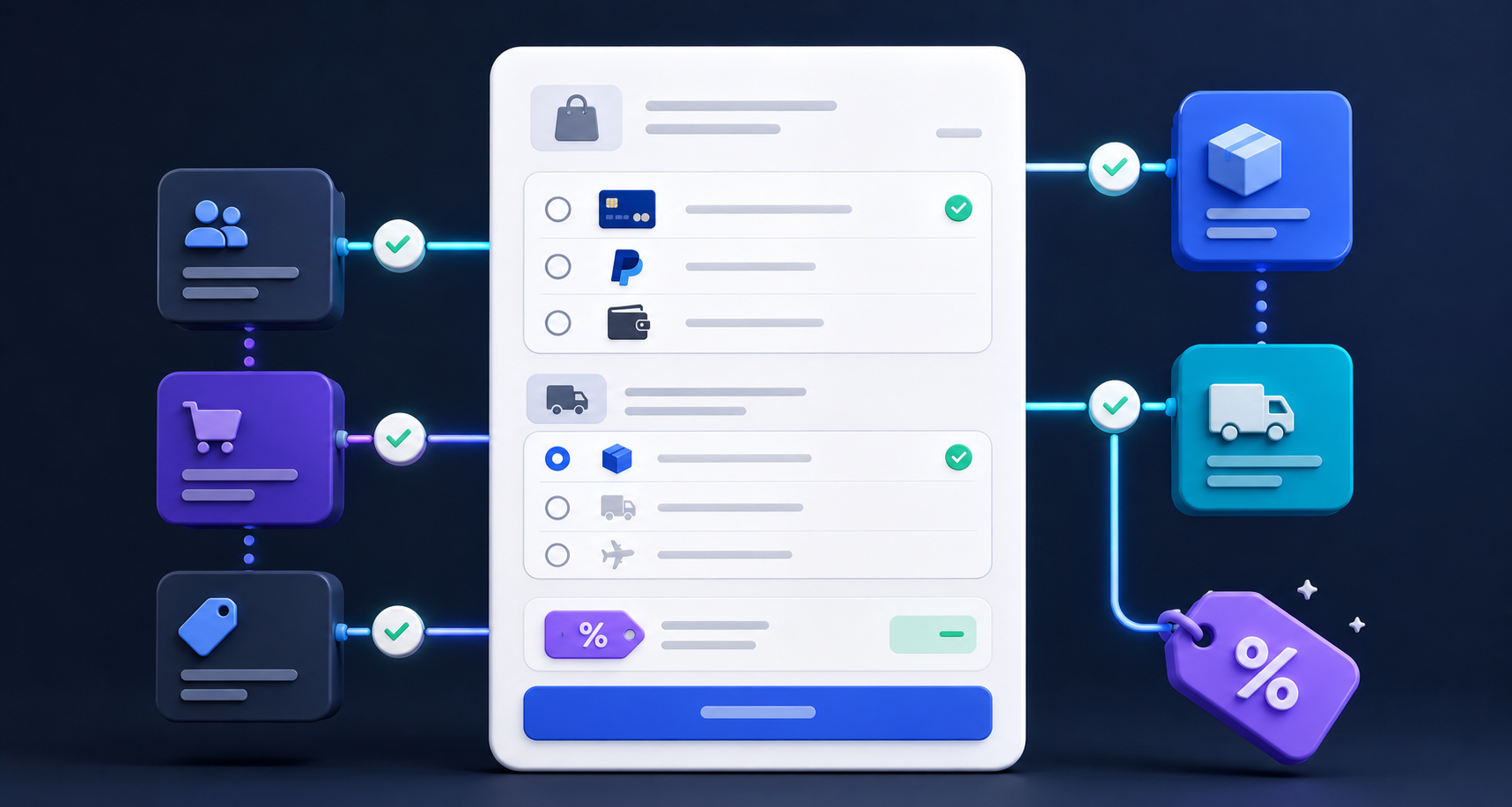
Create your first rule
NovaPay turns a simple “when this happens, do that” setup into a checkout customization. Start with one clear rule and test it before combining conditions.
Open the Rule library
Choose Rules, select Create rule, then pick a payment, shipping, shipping-to-payment, or discount action.
Name and configure it
Use a descriptive internal name, choose whether every condition or any condition must match, and configure the checkout action.
Save as deactivated first
A deactivated rule is stored with no checkout effect. Review every selected method and condition before activating it.
Test both outcomes
Run one checkout that should match and another that should not. Confirm the visible methods, order, names, or discount.
How NovaPay rules work
Every rule contains conditions, an action, and a status. Shopify evaluates active rules as checkout information changes.
When shipping country equals Canada
Then hide Cash on Delivery
Status Active
All conditions
The action runs only when every configured condition matches.
Any condition
The action runs when at least one condition matches.
Active
The saved configuration is published and can affect checkout.
Deactivated
The rule remains saved but has no checkout effect.
Hide, reorder, or rename payment methods
Control which payment options customers see and how those options are presented. Method names should match the labels Shopify supplies at checkout.
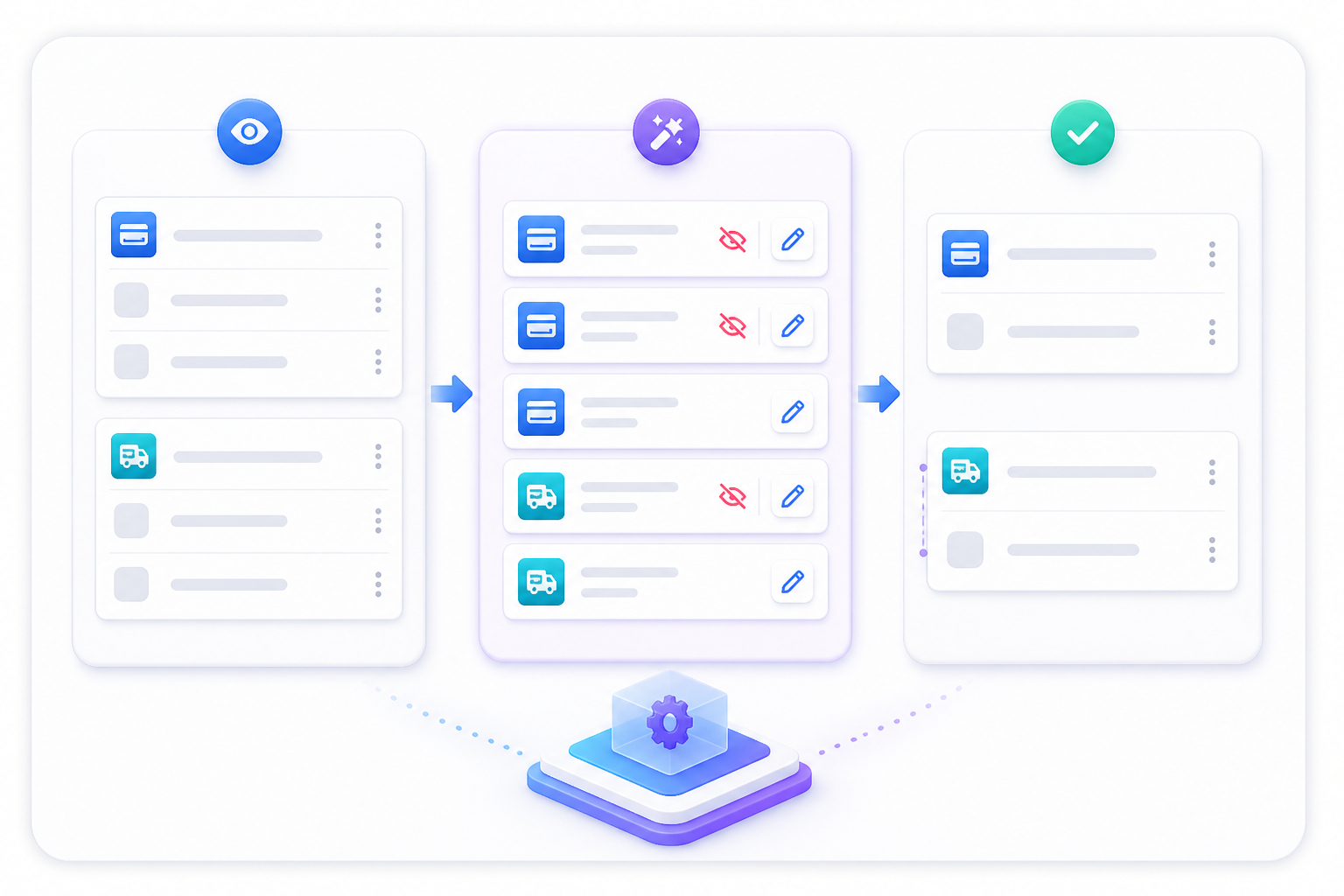
Hide methods
Remove selected gateways such as Cash on Delivery for matched checkouts.
Reorder methods
Move preferred options higher without changing the gateway.
Rename methods
Replace a label with clearer instructions or branded wording.
Payment by shipping
Show, hide, or allow methods using delivery or address context.
Control delivery choices
Shipping rules use Shopify Delivery Customizations to hide, reorder, and rename checkout delivery options.
Load store shipping methods
Grant shipping access when prompted, then select a store method or enter its exact checkout title.
Choose the transformation
Hide a method, drag methods into order, or enter a replacement customer-facing name.
Add checkout conditions
Use cart, customer, product, address, or country context to decide when the transformation runs.
Control payment methods from delivery context
Use this rule when payment availability depends on the selected shipping option, country, province, city, or postal code.
Exact match
The complete payment label must match the configured value.
Contains
Use a stable label fragment when a gateway adds variable text.
Does not contain
Target labels that exclude every configured fragment.
Hide or allow only
Hide matching methods or keep only the methods that match.
When selected shipping method contains “Express”
Then hide payment labels containing “Cash on Delivery”
Build conditional checkout discounts
Create automatic or code-based discounts for products, orders, or shipping. Configure eligibility, value, schedule, combinations, and usage limits in one builder.
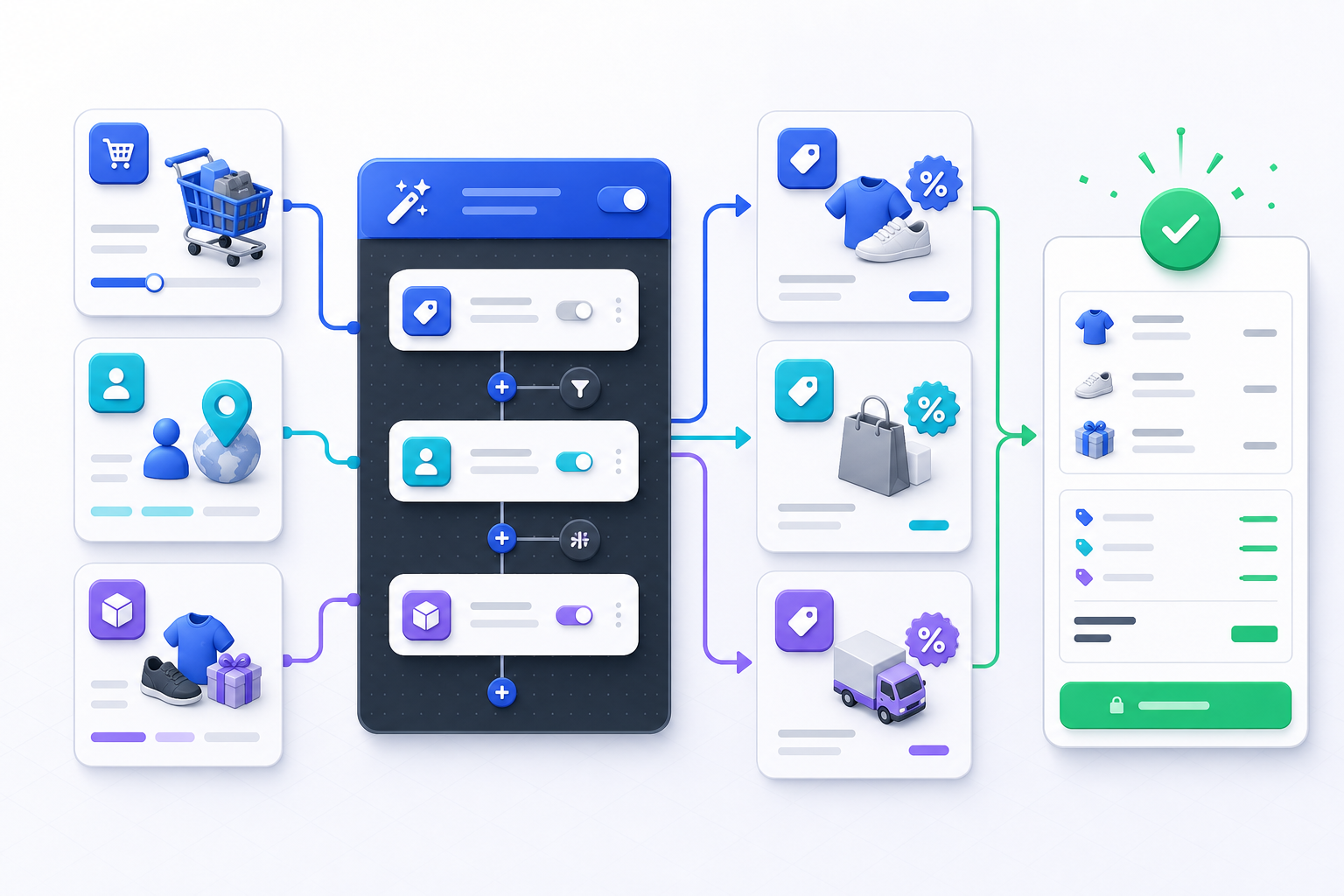
Product discount
Apply percentage or fixed savings to eligible merchandise.
Order discount
Apply savings to the eligible order subtotal.
Shipping discount
Reduce eligible delivery charges.
Schedule safely
Use date, time, and timezone controls for start and optional end times.
Choose reliable conditions
Keep the first version of a rule narrow. Add conditions only after the basic result works.
| Condition | Typical use | Testing advice |
|---|---|---|
| Location | Country, province, city, postal code | Test supported and unsupported addresses. |
| Cart | Subtotal, quantity, total weight | Test above and below thresholds. |
| Products | Product, variant, collection, tag | Test mixed and single-product carts. |
| Customer | Tags and signed-in context | Test guest and signed-in checkout. |
| Text matching | Exact, contains, starts with | Copy checkout labels carefully. |
Active-rule limits
Deactivated rules can be prepared without affecting checkout. Active limits are enforced when a rule is created or activated.
| Plan | Payment | Shipping | Validation | Discount |
|---|---|---|---|---|
| Starter | 2 active rules total | |||
| Advanced | 5 | 5 | 5 | 5 |
| Premium | 25 | 25 | 25 | 25 |
Troubleshooting
Most issues come from status, method-name matching, condition logic, access scopes, or checkout context.
A saved rule changes nothing
Confirm it is Active, within the plan allowance, and test a checkout satisfying every required condition.
A payment or shipping method is not matched
Copy the checkout label. Start with Exact match; use Contains only for labels with variable text.
Shipping methods do not load
Use Update access, approve the requested Shopify scopes, return to NovaPay, and reload.
An automatic discount cannot be saved
Make its title unique, verify the start time, and complete all required value and eligibility fields.
Conditions produce an unexpected result
Deactivate the rule, reduce it to one condition, test it, then restore conditions individually. Check All versus Any logic.
Ready to build a rule?
Create a deactivated rule and use this guide while testing checkout.